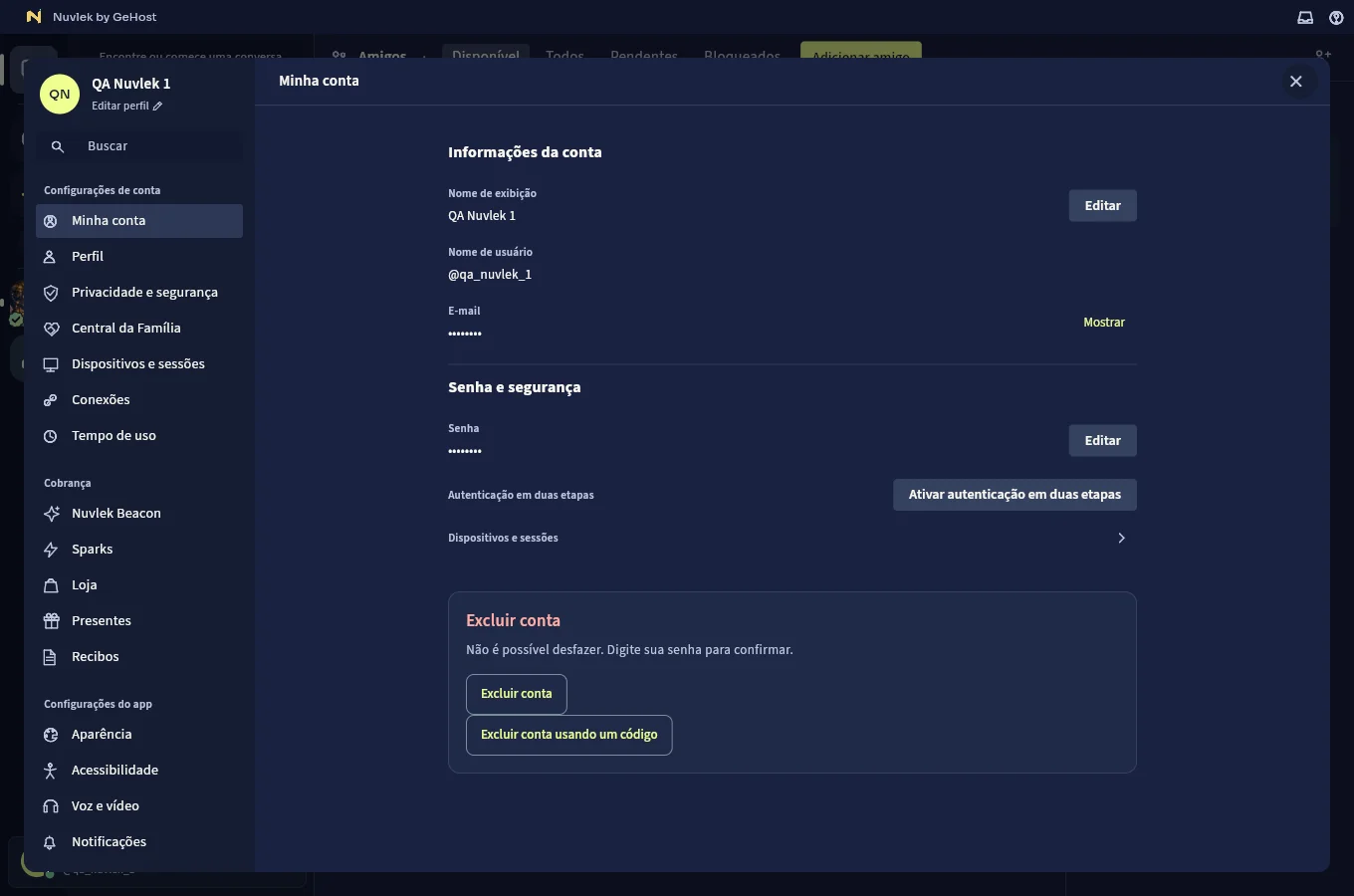
Your account
Protect your account with 2FA
In account security, start two-factor authentication
How to do it
In account security, start two-factor authentication. Add the displayed QR/secret to a TOTP authenticator, then enter its current code to enable protection. Store the recovery codes shown somewhere private, separate from the device.
Keep in mind
At login use an authenticator code or an unused recovery code. Do not send the setup secret or recovery codes to support. Keep the device clock automatic if codes fail. Losing both the authenticator and recovery codes can prevent access; ask support without expecting identity checks to be bypassed.
See the screen