


Apps
GeApp
The G e Soluções team’s workspace for tracking tasks, operations, and company information.
Getting started
How to use it
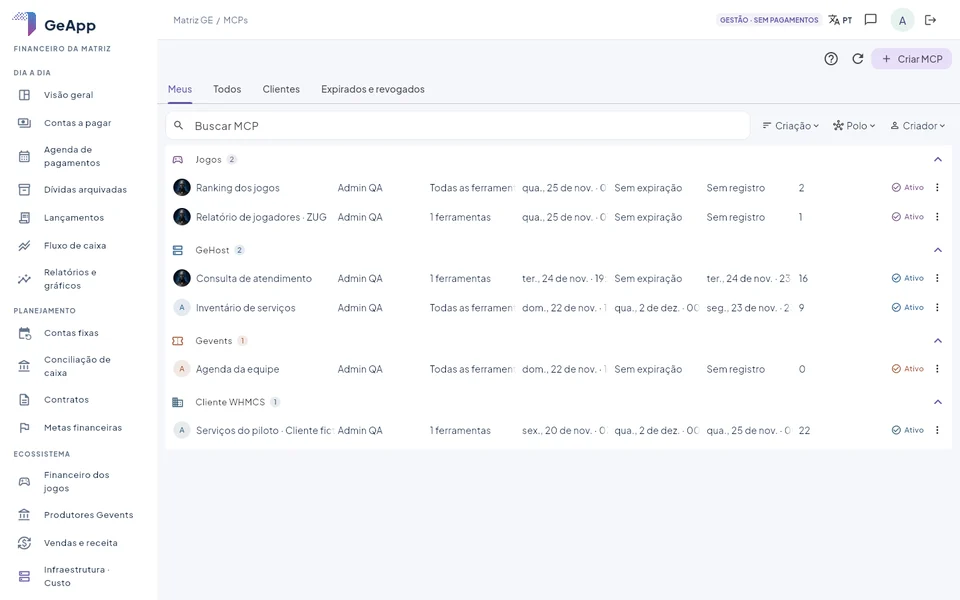
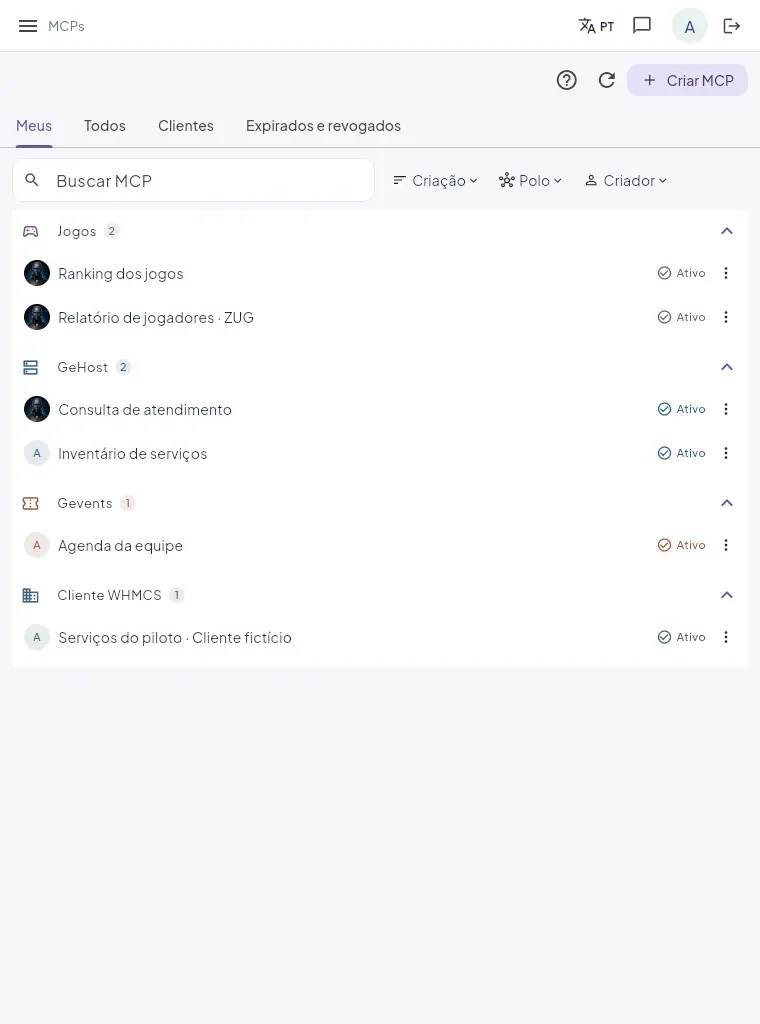
MCP connectors in GeApp. Create connections with access to the tools you choose and track activity in the details panel.
Screens and features
- In MCPs, open Create MCP, enter a name, and choose a group in the Product field. For WHMCS client, select the corresponding client.
- Select the tools, set the expiration, and review the permissions. Select Create. In the MCP URL dialog, select Copy URL and keep it private. The URL is the credential for accessing the tools.
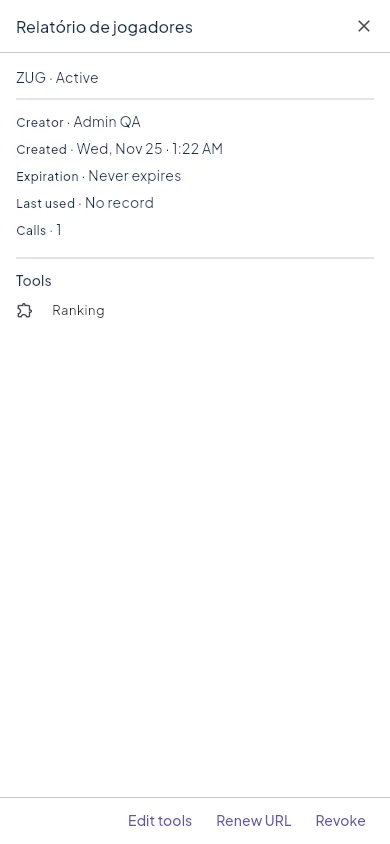
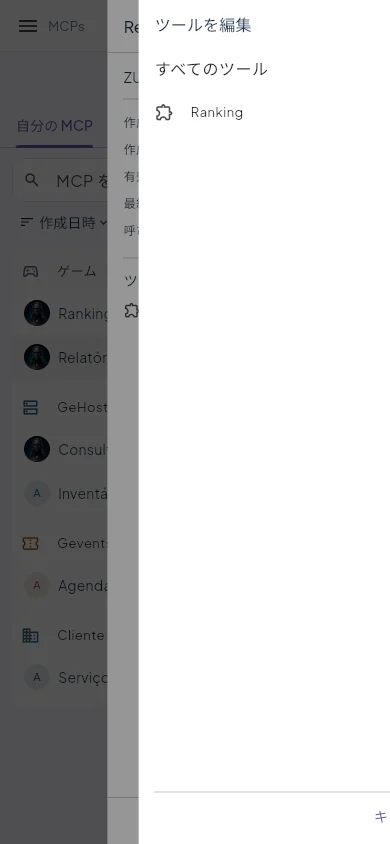
- Under Mine, search by name or expand the group. Select the connection to check activity. If you have permission to manage it, use Edit tools, Renew URL, or Revoke. Renew URL invalidates the previous link. Revoke ends access.
Queue and progress
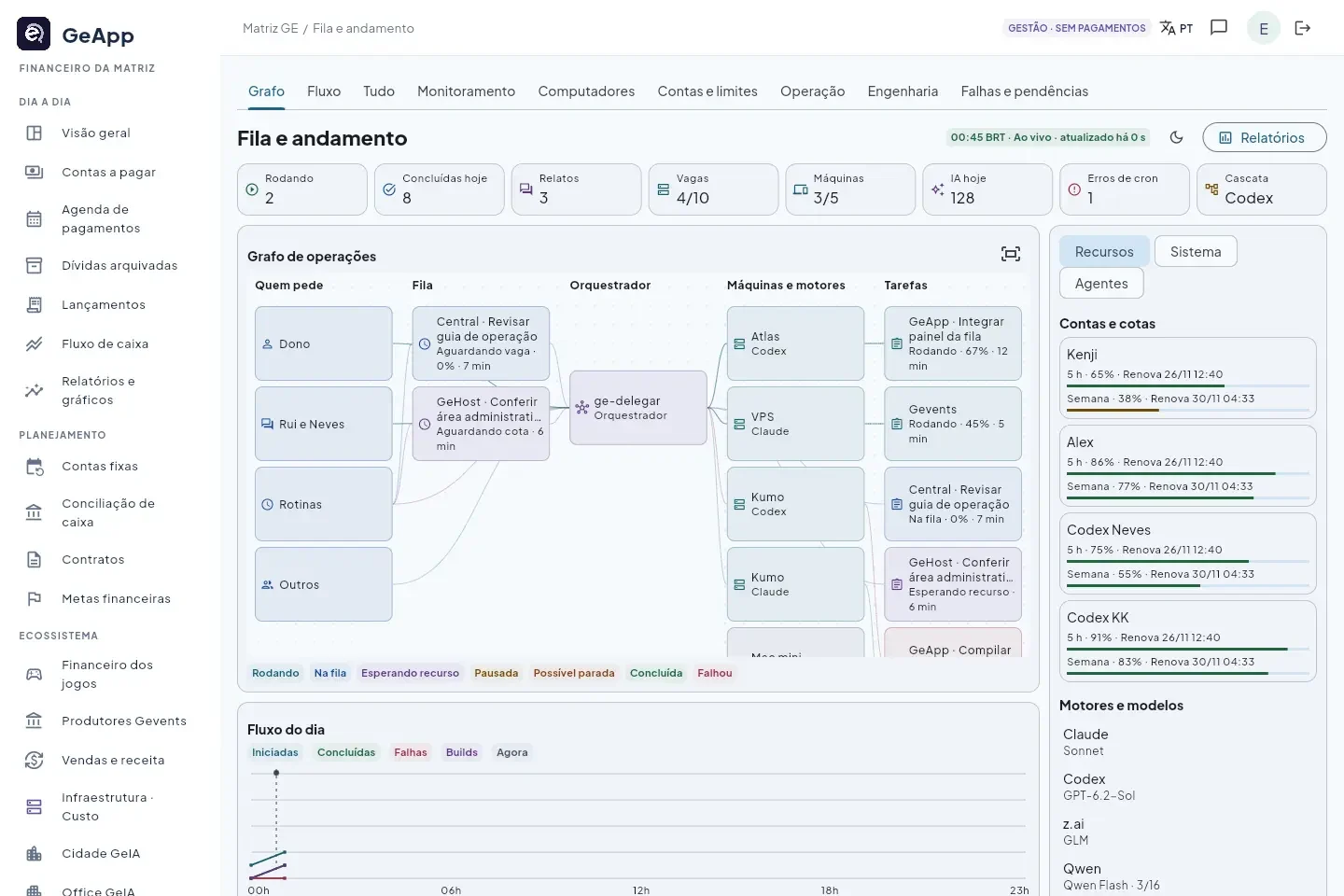
Follow the queue graph, resource usage, and operations reports.
- In the administrator menu, open Queue and progress and select Graph. Select a node for its details. On a phone, expand the list columns or select Open graph to pan and zoom.
- Select Flow to compare hourly counts of started, completed, and failed tasks, along with the number of builds. Times are shown in Brasília time. Open Resources for quotas and engines. Open System for failures and scheduled jobs. The owner can confirm a retry for eligible tasks.
- Open Reports and choose a period to see totals and tables by machine and engine. Export CSV downloads the file on the web and opens the share menu on Android. Select Print to open the device’s print dialog. The report flags when some sources only cover part of the period.
Team connectors in GeApp
View team MCPs and find out what to do when the list is empty or the catalog is unavailable.
- Open MCPs from the GeApp menu. If you have admin access, the screen opens on All when Mine has no active connectors and active team connections are available.
- If no connectors are available and Create MCP is enabled, open the form and choose from the tools available to your account.
- If you see a message that the tool catalog is unavailable, you can still view existing MCPs. Select Refresh to try loading the catalog again.
Team monitoring
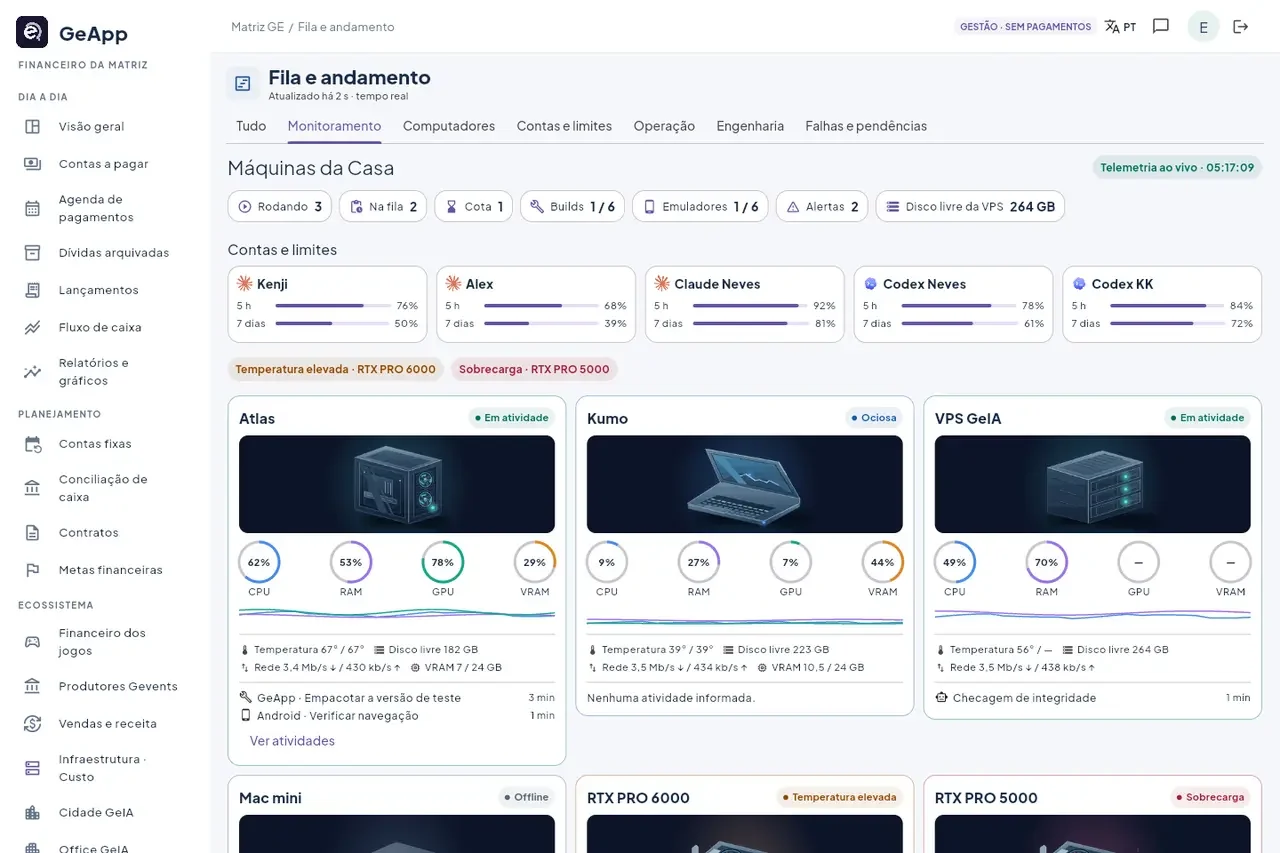
Track machine activity, account limits, and task progress.
- With administrator access, open Queue and progress from the GeApp menu and select Monitoring.
- Under Team machines, see active work and the latest available readings. The screen refreshes while the tab is open.
- Under Accounts and limits, check how much of each usage limit remains when the provider reports it.
- Return to All to check a task’s stage, elapsed time, and assigned machine. When a task is waiting, check the reason shown in the queue.
Trade strategy laboratory
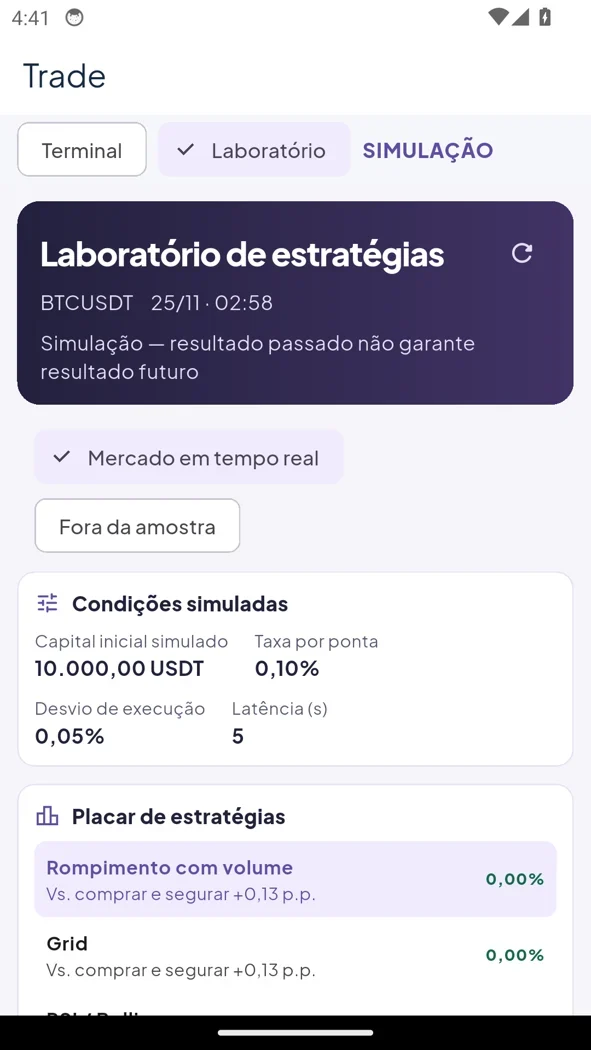
Compare five strategies with virtual balances and public BTC/USDT market data.
- Sign in as the owner, open Trade from the GeApp menu, and select Laboratory.
- In the Strategy leaderboard, select a strategy to see its simulated equity, parameters, and the reasons behind its decisions.
- Under Out of sample, compare the historical evaluation with the buy-and-hold benchmark.
The SIMULATION label marks results calculated using virtual balances. Past performance does not guarantee future results.
Release notes
Frequently asked questions
Where can I find the app?
Which version is available?
The Web version is 1.0.98. The APK from the official site is 1.0.98.