


Skip to content
GeHost Wiki

Start here

Learn to use Cortex

Choose a learning path and practise one task at a time.
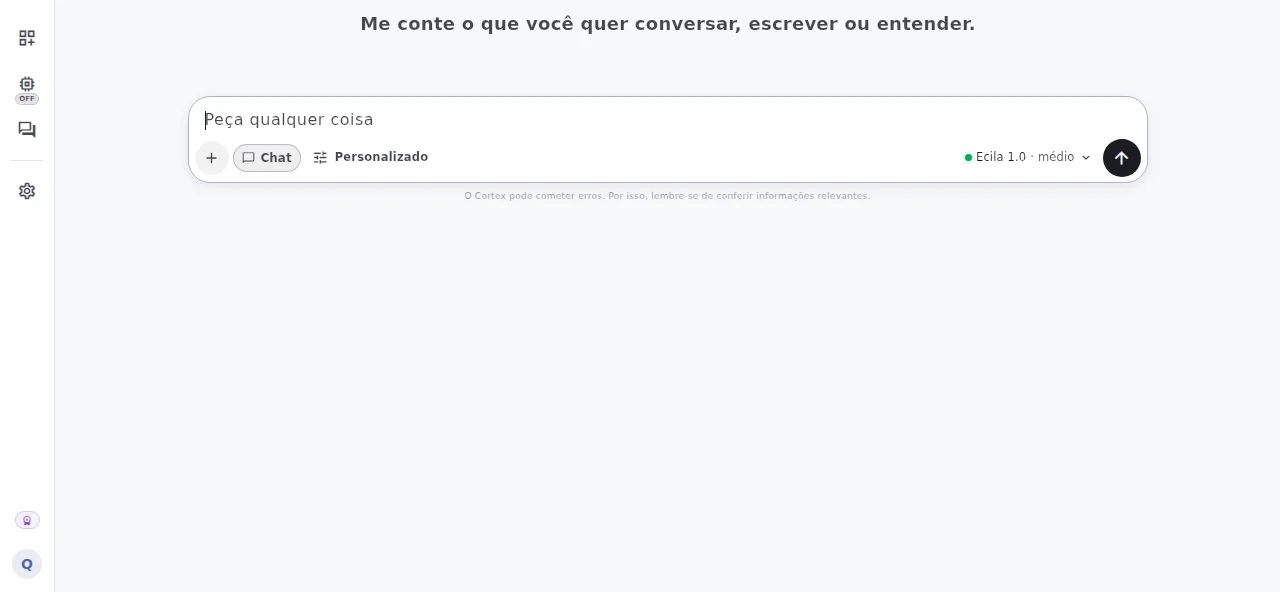
Version 6.75.457+659Available on · Android, iPhone, iPad, Windows, macOS, Linux and Web
Conversation in Cortex Web, in Portuguese, using the demo account.
Cortex Web 6.75.445

Start with what you want to do

Cortex brings together AI conversations, files and work tools. You do not need to configure everything first. Open First steps, sign in if you want to use several devices and ask a simple question.

Choose a learning path

  • Beginner: learn about conversations, attachments and the Library.
  • Work: write, organise references and check the result.
  • Programming: open a project, choose permissions and review changes.
  • Team: distinguish a shared chat from a team space and find the settings.

Find your way

The screen map explains where each task begins. The glossary explains names used in the app. Troubleshooting gives a next action for each situation.

Practise with text or a file containing no personal information. Check the answer before using it. You can return to these guides in your browser; each article keeps its address.

Read Updates to see what has reached your channel. Stores may release versions at different times.

Guide inside the app

In the app, the Learn center brings together a short guide, your progress, and help articles and videos. Choose how you want to use Cortex: simple mode keeps the basics visible, and you can change it later in Settings. Practice does not send messages or spend credits, and you can pause and resume the guide.

Cortex in under 2 minutes

Explore chat, attachments and shortcuts in the published Web app.

Duration: 56 s · Captions: PT / EN / 日本語

Read the video

Start with chat. You do not need to configure everything to ask a question. Write your goal in the field. Check the text before sending. The + button opens more options. This example shows image and video options. Close the menu to return to your request. Customize shows account skills and connections. Check the work destination. In this example, the folder was not found. Local AI needs a computer. The Web explains how to connect. The Settings screen brings together your account and preferences. Explore one option at a time.

Explore the guides

Chat and modelsTalk with Ecila or another AI, attach files and photos, dictate by voice, and organize your chats.What is CortexAn AI for chatting, coding, and teamwork, with the same account on your phone, computer, and the web.Team and shared chatsThe same AI chat for the whole team — invite up to 3 people to one of your chats or create a team space with channels, tasks, and an AI that learns from you.Local AI on your computerRun open models on your PC, offline — Cortex checks your computer, tells you what runs well, and downloads everything for you.Report a problem or share an ideaTell us what happened in a short chat with the Report Center, attach a screenshot, and get notified when it's fixed.Cortex CodeAsk for the change and follow the work — Airam reads the project, runs commands and tests, edits files, and shows you what changed.Getting startedDownload the app or open it in your browser, create your account, and start your first chat.My PC's AI on your phonePair your phone with a QR code and chat with your computer's model, at home or away, end-to-end encrypted.Messages: WhatsApp, Messenger, Instagram, LINE, and TelegramYour WhatsApp Business, Facebook Page, and Instagram chats in one inbox, with the AI helping you read, summarize, and reply, and your team handling customers together.What's new and updatesHow Cortex updates on each device and where to see what changed in each version.Getting startedDownload the app or open it in your browser, create your account, and start your first chat.Your AI accounts and API keysConnect your AI accounts using available integrations. Each provider’s limits, costs and terms still apply.AI AttendantCreate an attendant with your business information — it suggests replies or answers on its own, and calls you when it needs you.Account, devices, and privacyWhat syncs between your devices, where your data lives, how to change the language, and how to delete your account.Customize — plugins, skills, connections, and MCPConnect Cortex to the tools you already use and choose what the AI can do, all on one screen.Plans and what each one unlocksCompare the limits of each plan and see what comes with Cortex Livre, Plus, Pro, and Max.Website chatAdd a chat to your website with one line of code. Visitors talk to your AI agent and, when needed, someone from your team takes over from the Messages inbox.Frequently asked questionsQuick answers about plans, data, subscriptions to other AIs, teams, and everyday use.AI images and videoDescribe it in the chat and get the finished image, or ask for a short video from text or a photo.Missing folders and project activityLocate a moved folder, keep its conversations, and follow work in the sidebar.Frequently asked questionsQuick answers about plans, data, subscriptions to other AIs, teams, and everyday use.Reply to connection alertsRequest an action directly from an alert and see the result in the same conversation.LibraryEverything born in your chats — images, videos, documents, code, 3D, and audio — in one place, with search and filters.Use Cortex in your browserInstall the Chrome or Edge extension, connect it to the app, and allow all sites or only the ones you choose.SynapsesA companion with a mascot, its own conversation, goals and routines that keeps working for you — in the cloud or on your computer.Found agentsFind rules, specialists and tools you already use.Screen and button mapFind where to start without memorising the app.Troubleshooting: what to do nextFind the symptom and take a safe next step.Cortex glossaryApp names explained in everyday language.Beginner path: your first conversationA short exercise with no tool setup or purchases.Work path: from draft to checked textUse AI to organise text without sharing private information.Programming path: explore a project safelyOpen a sample folder and review permissions before requesting changes.Team path: find the right workspaceUnderstand shared conversations and Messages before inviting anyone.Ask a question and improve the answerState your goal, check the answer and ask for changes in the same conversation.Attach a photo or documentShow the file and explain what you want to do with it.Write by speaking with dictationThe microphone turns speech into text you can review before sending.Find and organise conversationsUse search and the conversation menu to keep things tidy.Find and save a conversation fileUse the right Library and check the copy on your device.Change language and appearanceAdjust reading on your device without changing accounts.Check a project’s permissionsUnderstand what AI may do before requesting an edit.Follow, pause and resume a taskRead the real work status and the executing computer’s limits.Review files changed by AICompare the result with your request before using the project.Share a conversation with the right peopleReview history and access before inviting anyone.Connect a tool to CortexUse official authorisation and check the access granted.Understand alerts and notificationsAdjust alerts and open the right conversation when replying.Install Cortex on WindowsUse the official installer and keep your account when updating.Install Cortex on MacDownload the official file and open the app before connecting tools.Install Cortex on LinuxChoose the package listed for your system on the official website.Install on Android, iPhone or iPadOpen the official store from the website and use the right account.Sign in to the same account on your devicesCheck your identity before looking for history.Try Cortex without signing inUnderstand what stays on your device during guest use.Update through your installation channelRead updates and check the version available for your device.Find information in conversation historyFind a topic and check the conversation before reusing an answer.Start with local AI on your computerRead your computer analysis before choosing a download.Start with AI Attendant draftsReview a suggestion before allowing automatic replies.Get to know your SynapseExplore the conversation and goals before creating routines.
Navigation
Open original image ↗