


Voice and video
Camera and video quality
In voice/video settings select the camera and inspect its preview before enabling video in a call
How to do it
On desktop, select your camera in voice/video settings and test its preview before the call. On mobile, review the camera preview before broadcasting. Windows must allow camera access to desktop apps. Close other apps using the same device if the preview is unavailable.
Keep in mind
Choose a quality your network can sustain: the base free limit is 720p30, and Beacon goes up to 1080p60. In a community with a Sparks benefit at level 2 or above, the free option can reach 1080p30. Check the options the app shows for that call. The plan is a maximum, not a guarantee of delivered resolution. Disable video when done and check the call indicator. Avoid showing other people without permission. For teens, publishing camera and screen sharing inside calls requires a linked guardian and the guardian’s streaming permission enabled (off by default). This permission does not unlock public Beacon Live, which requires verified adulthood. Use Report stream for a safety concern.
See the screen
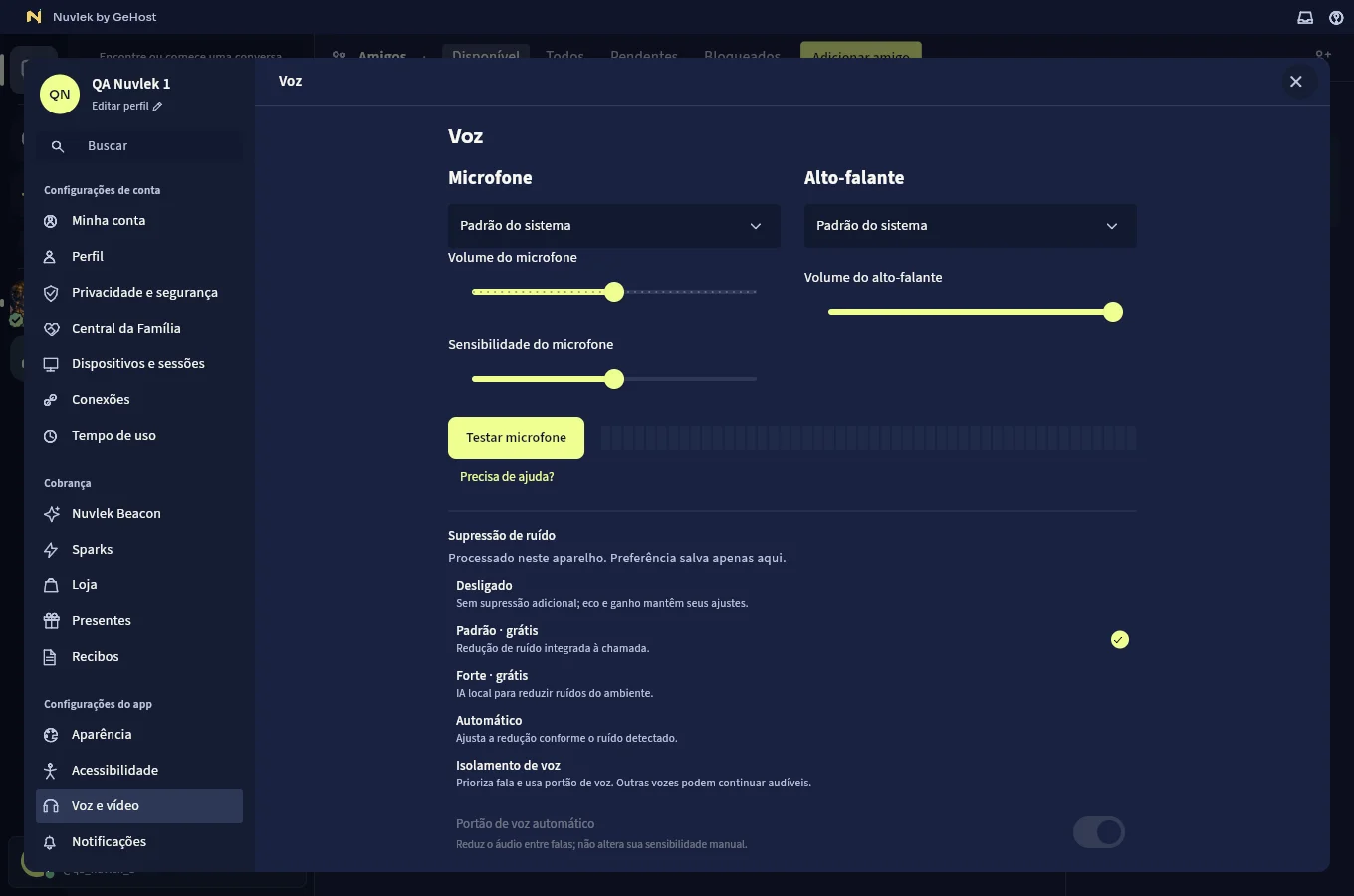
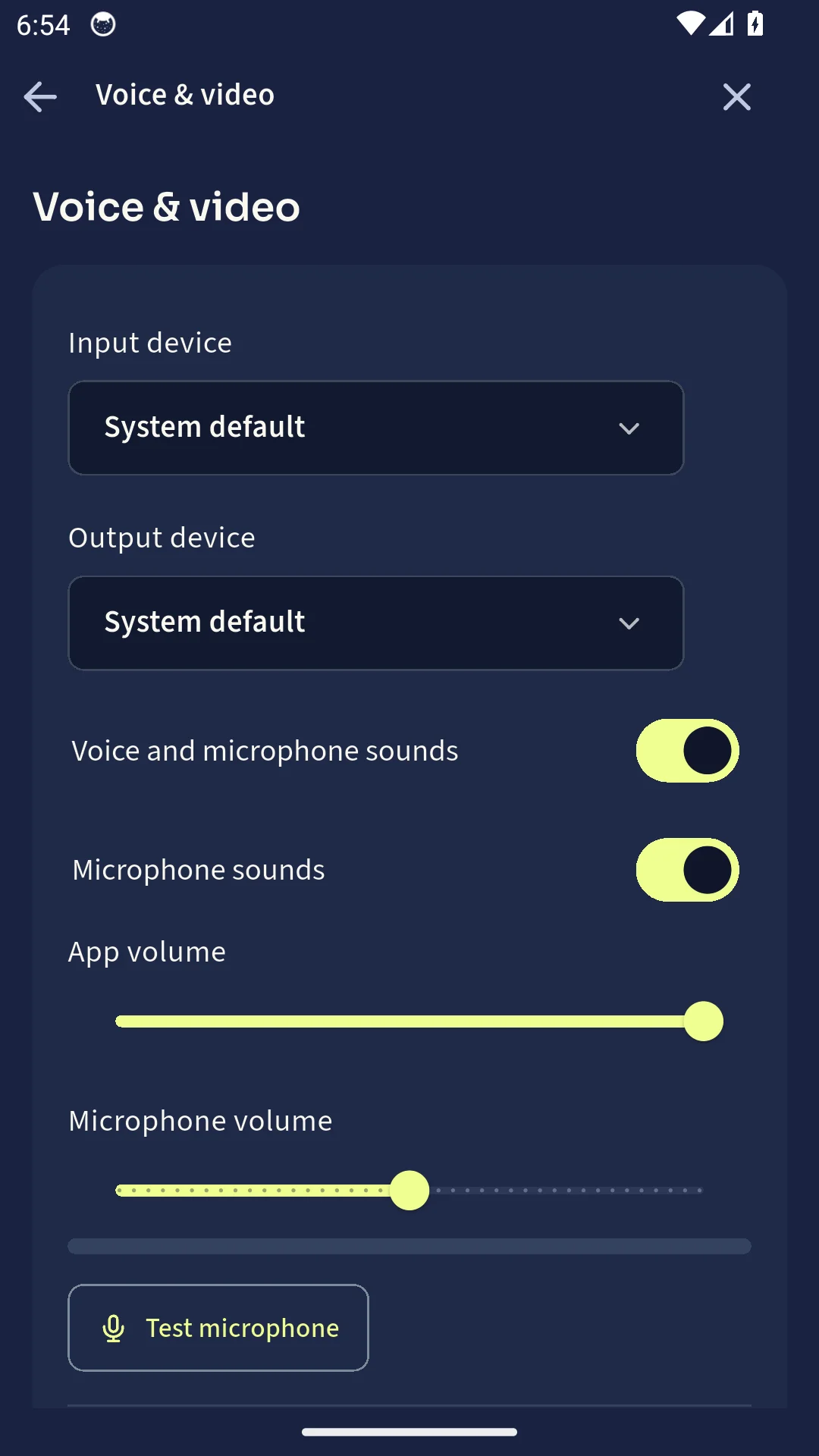
These photos show the audio controls in Voice & video. Follow the written steps to find the camera options.