Your account
Themes, shortcuts and language
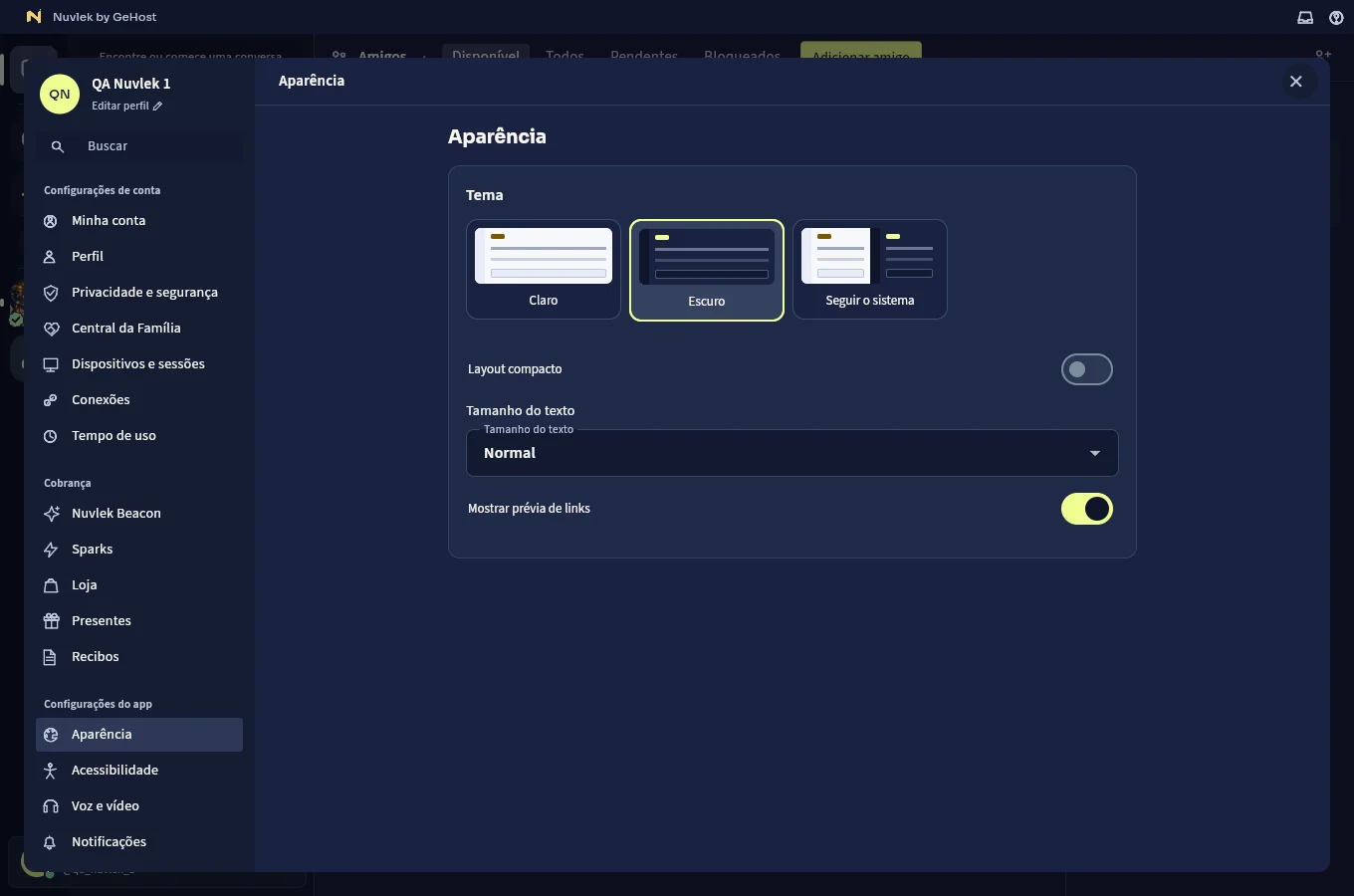
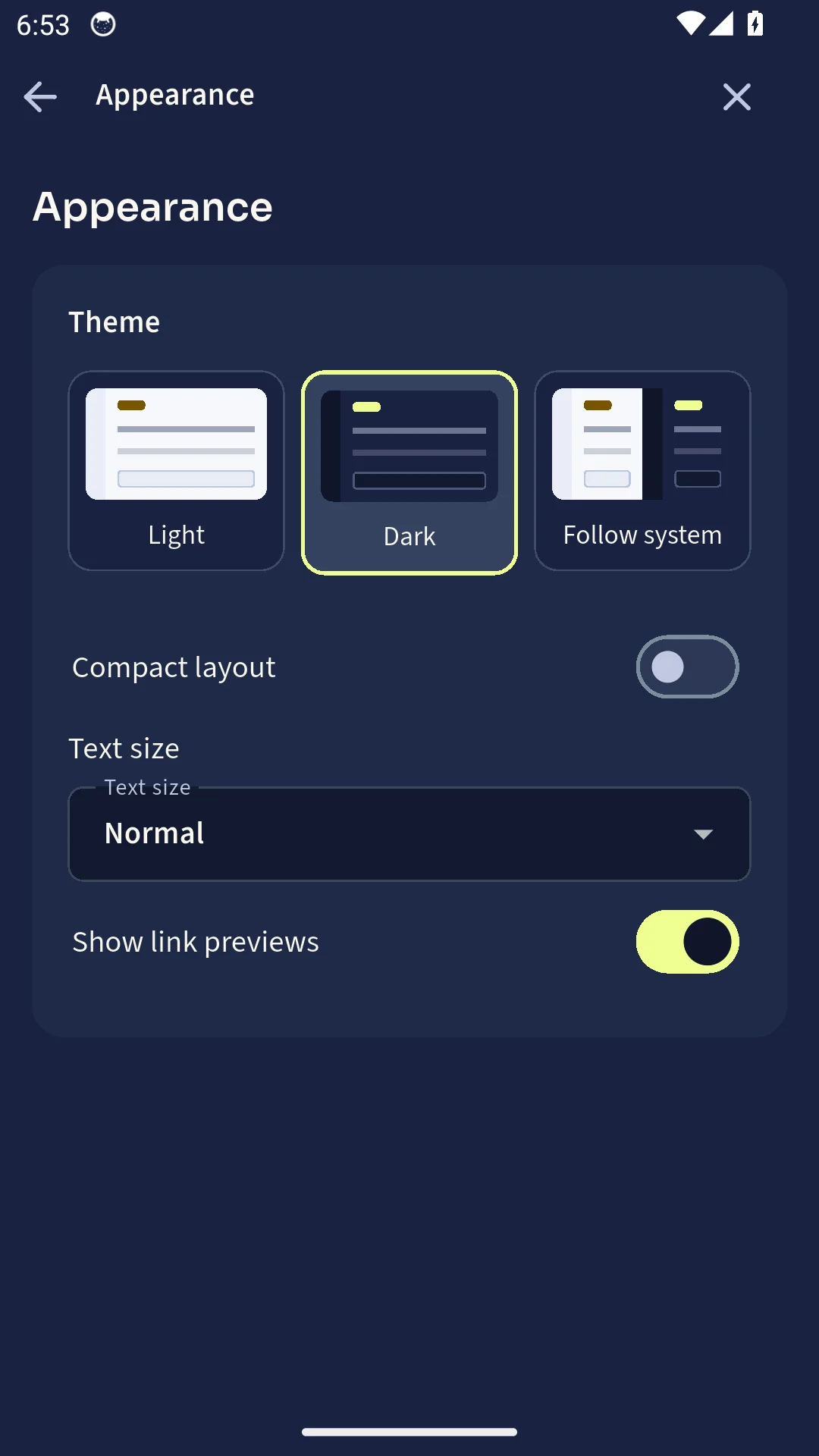
In settings choose dark, light or system theme and select English, Brazilian Portuguese or Japanese
How to do it
In settings choose dark, light or system theme and select English, Brazilian Portuguese or Japanese. Review custom keybinds, especially push-to-talk, so they do not overlap with game controls. Store themes are optional cosmetic items.
Keep in mind
A site language switch and the app language are separate choices. Keyboard layouts can change which key a shortcut detects; test while the game is focused. Use readable contrast and operating-system scaling rather than shrinking text too far. Revisit settings after switching devices.
See it in practice
Everyday settings
Theme, accessibility, language, notifications and voice. The capture preserves the original app interface; some option names may appear in another language. Guides and subtitles use the selected language.
Read the video
Choose an appearance that is comfortable to read. Find contrast and reduced-motion options. Choose the app language in Settings. Review the notification types available on this screen. Check input, output and settings before joining a call.
See the screen