Help
Fix microphone or silent audio
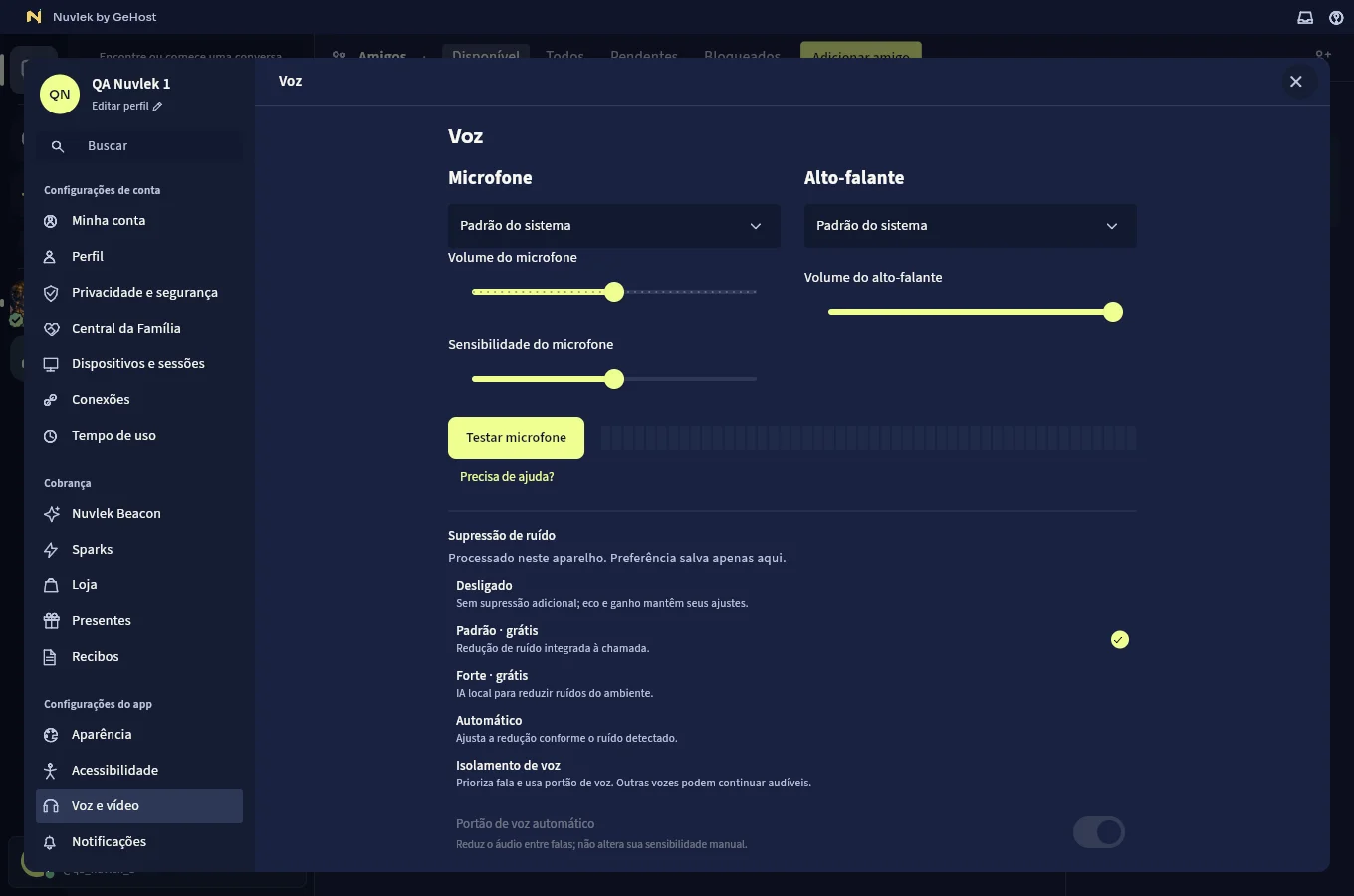
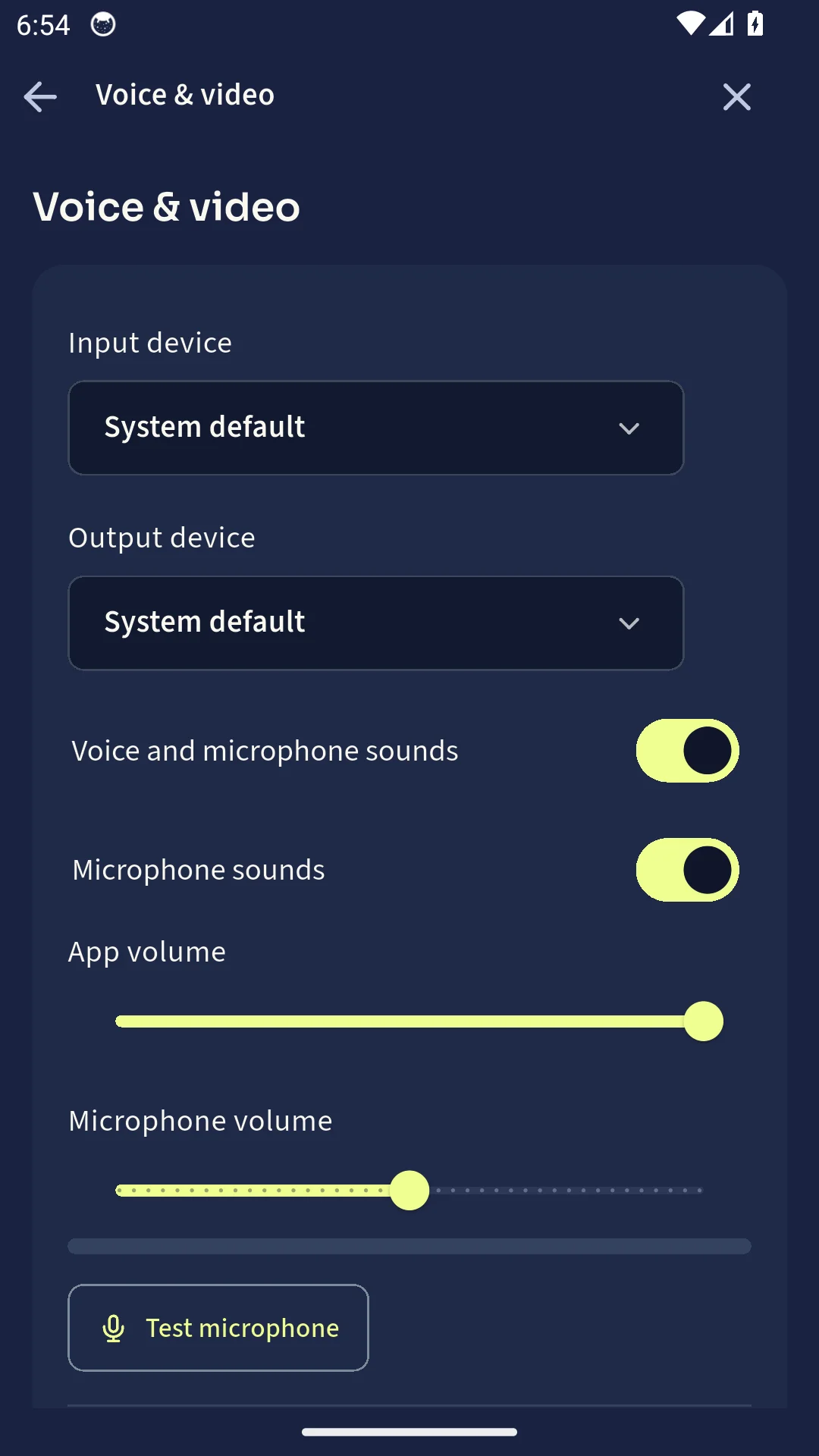
Check Windows microphone permission for desktop apps, then select the intended input/output in Nuvlek
How to do it
Check Windows microphone permission for desktop apps, then select the intended input/output in Nuvlek. Test headset mute buttons, app mute/deafen and system volume. Make a brief call with a friend after closing other audio apps.
Keep in mind
If you can hear but cannot speak, check push-to-talk and server mute/Speak permission. If no sound reaches you, check output device and per-user volume. Record device model, app version and the error for support without including private call content. Do not disable firewall or antivirus.
See the screen