Conversations
Start a chat
Open an accepted connection and send your first text.
In Discover, read a profile and tap Like. When the connection is accepted, the presentation offers to open the chat. You can also find it in Chats.
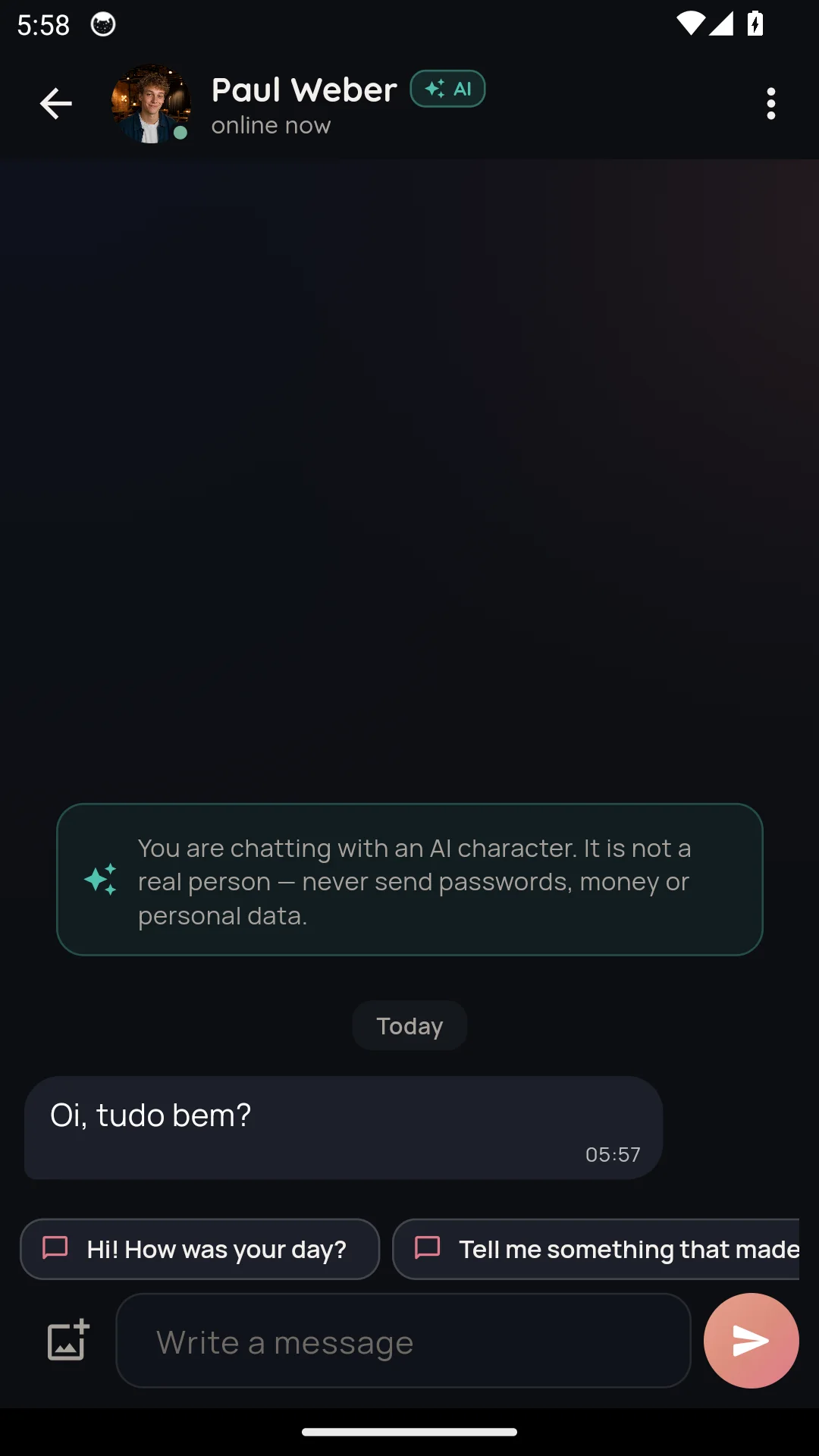
Tap the message field, write your text and choose Send. In a new chat, starter suggestions near the field can fill in an opening topic; edit it before sending if you wish.
Wait for the reply. If sending is unavailable, check access and whether the chat is active. The screen tells you when it is archived or ended.
An outcome without a connection is not a lost chat. You can explore another profile and return at your own pace.
Send your first message
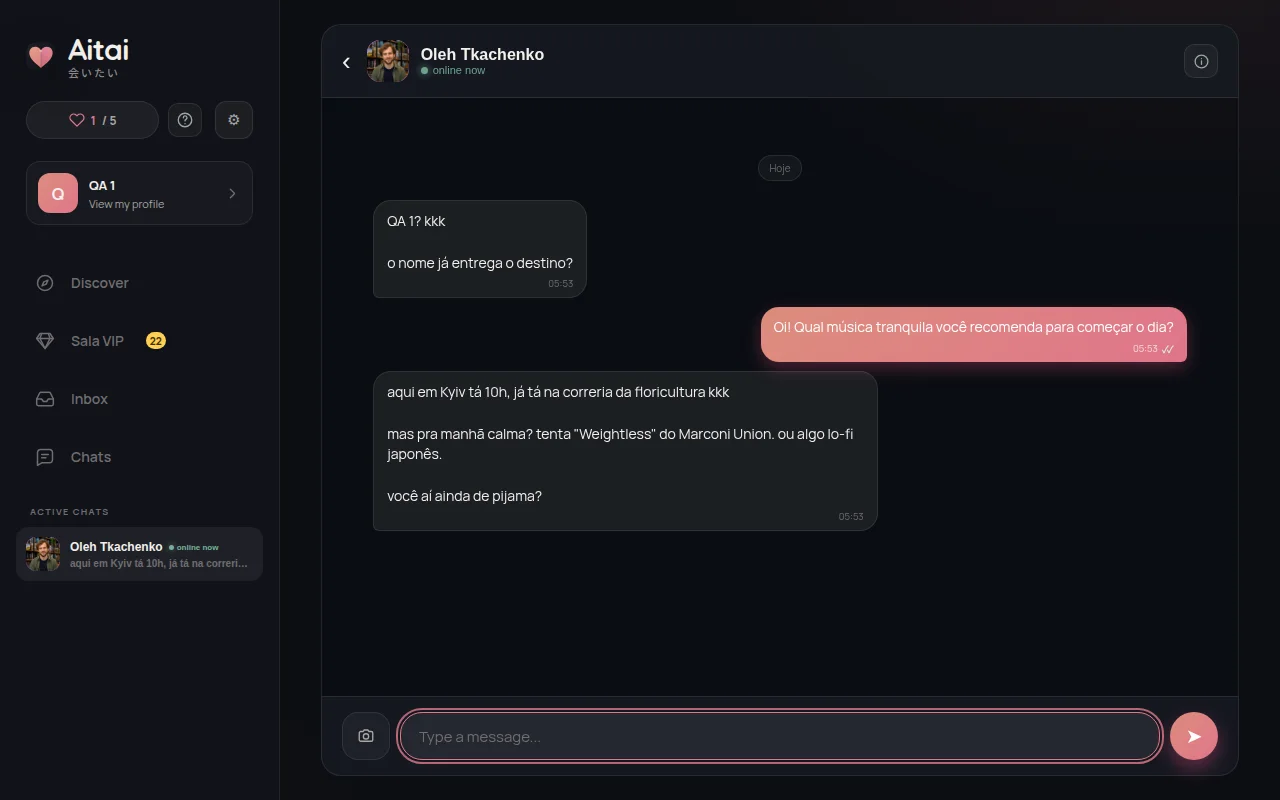
A message sent through the interface and the AI character’s real reply. The recording keeps the published button names, including English labels such as Inbox and Upgrade. In this recording, the profile counter still shows the numbers from before the message was sent; the question and reply are visible in the chat.
Read the video
In Chats, choose the connection you want to open. The text field is below the message history. Write a simple topic without personal details. Press Send and wait for the reply. The reply is produced by the artificial intelligence character. The profile also shows a summary of that conversation. Close the profile to return to messages. Return to Chats to find the conversation later.
See it in the app