


On your computer
Programming path: explore a project safely
Open a sample folder and review permissions before requesting changes.
Before you start
Use a sample folder on your computer. Do not learn with customer files, keys or passwords. Phones and Web follow projects on an authorised computer or server.
- Open Code and New project. Select the sample folder.
- Check the project's folder name and location.
- Open Permissions and read the selected policy. Request approval asks before actions on the computer; other policies can allow more autonomy.
- Ask: “Explain the structure of this folder. Do not change files or run commands.”
- Read the explanation and check that the named files exist.
When editing
Make a copy of the project first. Describe one small change and the expected result. Follow the plan and steps; review changed files afterwards. Do not approve commands you do not understand.
Next step
Read project permissions, reviewing changes and long tasks. AI should show what it did; a promise in text does not prove a file changed.
Programming path: understand where work runs
Explore Code mode and requirements for an authorised computer.
Read the video
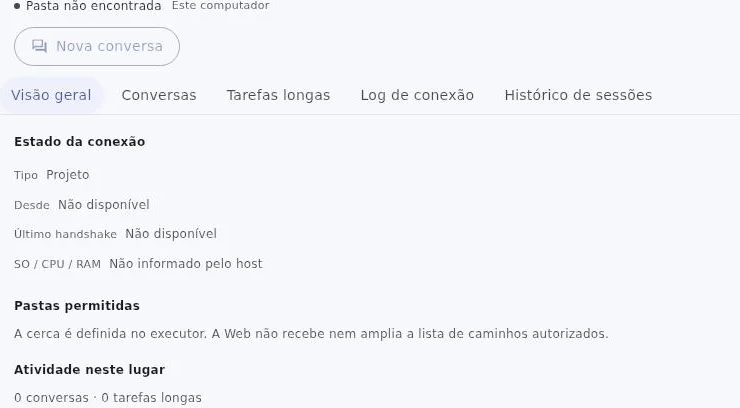
Watch the screen before the first step. This example shows a project destination whose folder was not found. On the Web, files and terminal need an authorised computer. The panel shows the work destination’s status. Check the destination. In this example, the folder was not found and execution is unavailable. Open Settings to find related controls. The Long tasks section brings together work monitoring. Without an executor, connect your computer before requesting edits.