


On your computer
My PC's AI on your phone
Pair your phone with a QR code and chat with your computer's model, at home or away, end-to-end encrypted.
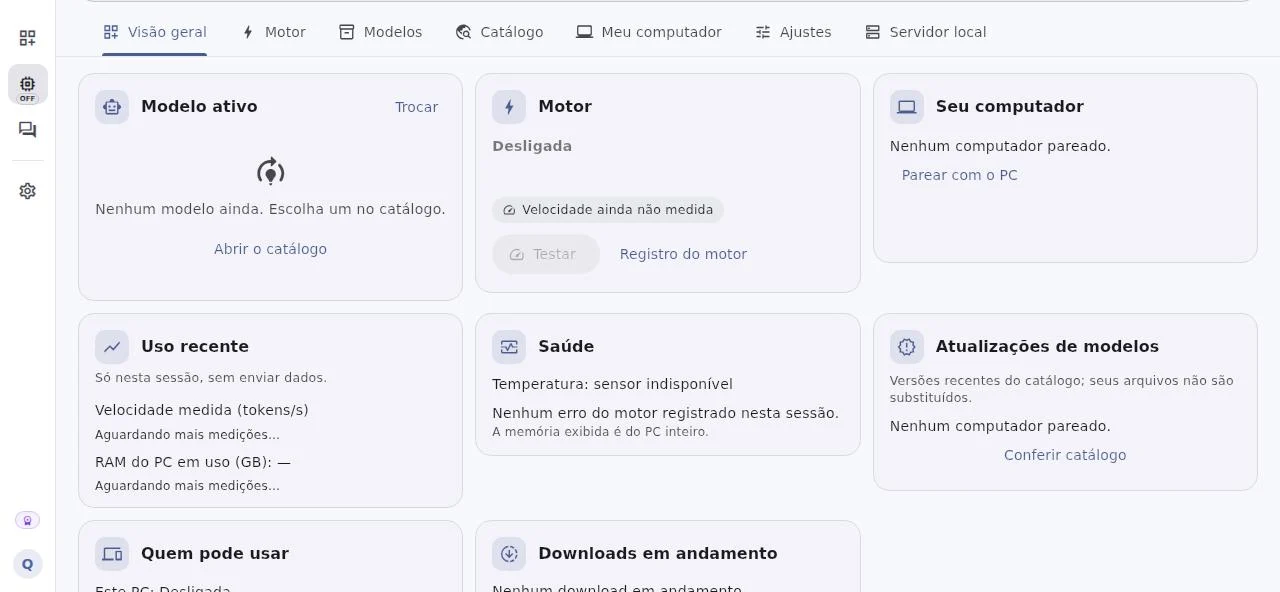
With My PC's AI, your phone uses your computer's local AI. At home, the chat goes straight over Wi-Fi; away from home, it goes through your account, end-to-end encrypted — the server cannot read the content and does not write it to disk; encrypted delivery waits in memory until delivered or for at most two minutes.
Using your PC’s AI on a phone requires Cortex Pro or Cortex Max. Local AI used only on the computer itself is a separate feature.
Pair your phone
- On your computer, open Local AI and make sure it's on (see Local AI).
- Turn on Use on phone and tap Pair phone. A QR code appears on screen.
- On your phone, open Settings › My PC's AI › Pair with PC and point the camera at the QR code.
- Done: My PC's AI shows up in your phone's model picker, with its live status.
Use it
- On your phone, open a chat and choose My PC's AI in the model picker.
- Chat as usual. The badge shows whether the connection is going through your home network or through your account.
Who has access
On your computer, the Devices with access list shows each paired phone. Tap Revoke to cut off access immediately; to get it back, just pair again.
In a Team
Whoever hosts a shared chat can let the request queue run on their own PC, with the local model. See Team.