

Start here
Getting started
Download the app or open it in your browser, create your account, and start your first chat.
Choose where to use it
| Where | How to install |
|---|---|
| Android | From Google Play or with the APK on the site's downloads page |
| iPhone and iPad | From the App Store |
| Windows | Installer on the downloads page; the app updates itself |
| macOS | .dmg file on the downloads page |
| Linux | .deb or .tar.gz package on the downloads page |
| Browser | Cortex Web: just open it, nothing to install |
The links are always up to date in the site's Download section.
Create your account
- Open Cortex and tap Sign in.
- Sign in with email and password, with Google, or, on iPhone, with Apple.
- That's it: the Cortex Livre plan is already active, no card needed.
Your first chat
The first time you open Cortex, it asks how you want to use it today: I just want to talk (questions, writing, ideas) or I'm going to code (the AI works on the files of a project). You can switch at any time.
- Choose I just want to talk.
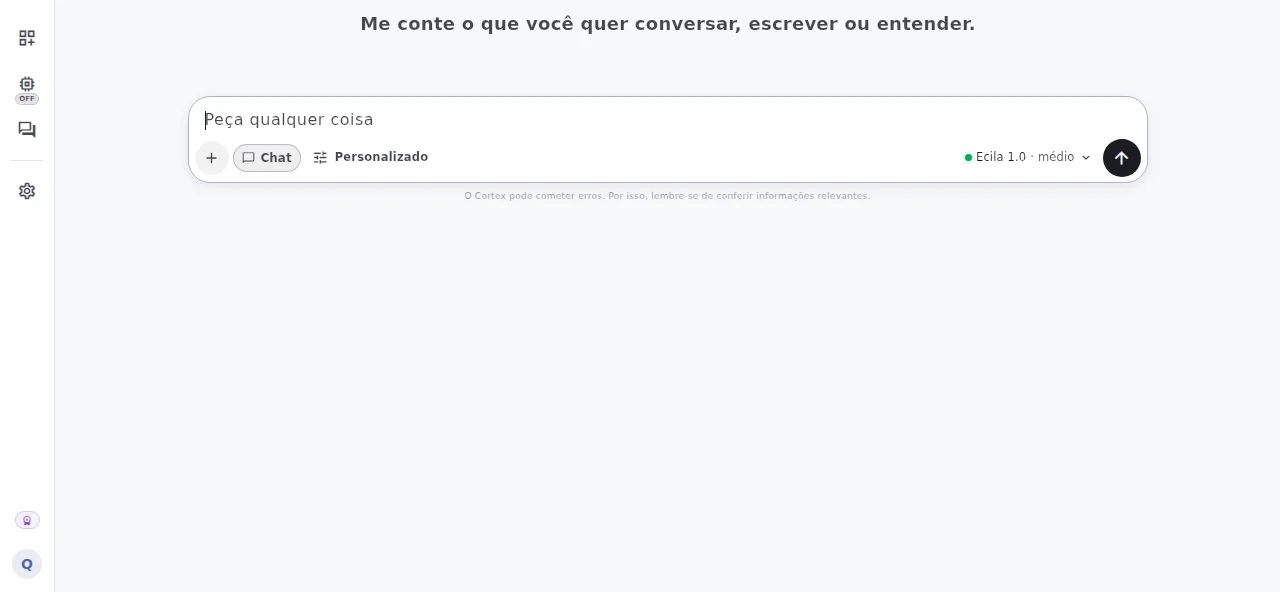
- Type what you need in the Ask anything field and send it.
- Follow the answer in the chat. To keep going, just write again in the same chat.
Finding your way around
- On computers and tablets, the shortcut rail is on the left: Home, Library, Tasks, Connections, Customize, Settings, and your plan. Your Chat and Code conversations are next to it. Open Messages for Team channels and customer conversations, brought together there since version 6.75.382.
- On phones, the chat takes up the whole screen. Tap the » button at the top (or swipe from the left edge) to open the chat list along with the shortcut column; tap outside to close it.
Language and theme
The app and site support Portuguese, English and Japanese. In current app versions, language is under Settings → Account → Language. In Web 6.75.455, open Settings → Account or use Language in the account menu. Dates, times and numbers follow the selected language.
First steps on the Web
Find the message field, options menu and language.
Read the video
After signing in, start with a simple conversation. Say what you need and how long the answer should be. Read before sending. In this example the request is still in the field. Use + to open the options. This example shows images and videos. Close the menu to return to writing. Open Settings to explore device options. You can change language without creating another account.