


Create
Cortex Code
Ask for the change and follow the work — Airam reads the project, runs commands and tests, edits files, and shows you what changed.
In Code mode, the chat is tied to a project folder. The AI reads the files, runs commands, edits whatever is needed, and shows each change for you to review. You choose how much it can do on its own: with Ask for approval, every action on your computer goes through you.
Open a project
- In the chat list, open the Code section.
- For a folder on your computer, tap New project (or Select project for one you've opened before) and pick the folder.
- For your own server, tap New connection and enter the SSH access. The server folder opens as if it were local.
- The new chat shows up in the Code section, with the project name at the top.
Ask for a change
- Describe what you want, for example: "run the tests, find out why they fail, and fix it".
- The AI builds a work plan and checks off each step as it goes.
- When it needs to touch your computer (run a command, write a file), it asks for your approval — unless you have allowed that action.
- At the end, the chat shows the edited files. Tap Review to see what changed in each one.
Choose the engine
Code uses Airam by default, within your plan's limit. You can also work with your Claude, Codex, Gemini, or other subscription from the model picker. See Your subscriptions and keys.
Run without your PC on
The Plans comparison shows when Cloud execution is included. Check the rights, availability and limits shown in your account for this feature.
Cortex CLI: the same account in the terminal
Prefer the terminal? The Cortex CLI talks to the same account and works in the folder you're in, asking for confirmation before touching files (the --sim option skips confirmation).
| System | Install |
|---|---|
| Linux | curl -fsSL https://cortex.gehost.com.br/cli/instalar.sh | bash |
| Windows (PowerShell) | irm https://cortex.gehost.com.br/cli/instalar.ps1 | iex |
Then run cortex login with your account's email and password, and cortex to start chatting.
Connections: your work places
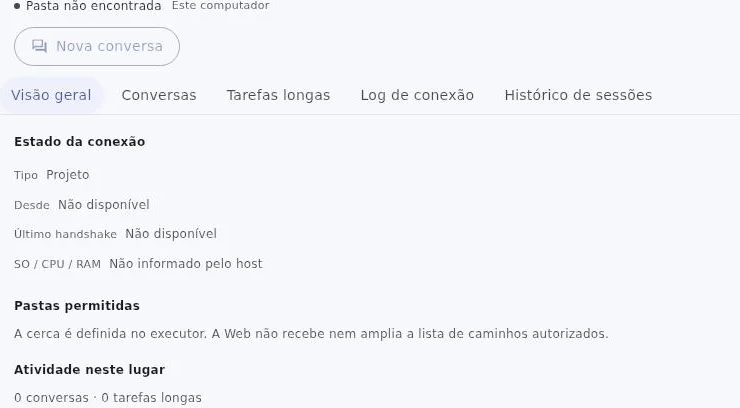
Open Connections from the sidebar. Choose Projects, Folders, SSH, Shared or All to find a destination. Search and filters for type, status and recent activity help narrow the list.
On a computer, select a row to view its details alongside the list. On a phone, tap a place and use Back to return. Details bring together the status reported by the destination, linked conversations and tasks, allowed folders when available, connection events and history. Activity lists initially show up to 50 items; Load more reveals earlier entries.
To add a server in the app, choose Add SSH server, enter the host, user, port and authentication, run Test connection, then save after a successful test. Changing the destination or credential requires another test. SSH passwords remain only for the session. When you are signed in on the desktop app, SSH keys may be stored encrypted in your account vault, depending on the automatic SSH-key cloud-storage option under Settings → Permissions. On the Web, configure access through Cortex Desk: the browser follows paired executors and authorized conversations.
Under Shared, team PCs come from conversations shared with your account. Opening a room preserves that conversation’s permissions; this hub grants no access to a colleague’s terminal or files. Available means an executor is online; on the Web, Connected also requires an accepted pairing for the conversation.
History stays on this device and in this account. It records session status, duration and result, without storing commands, output or credentials. Copy diagnostics includes only allowed operational fields. Information the destination does not provide, such as CPU and memory, is shown as unavailable.
Long tasks at your computer’s pace
Open Settings › Code › Long tasks to choose a profile. Limits use the executor computer’s cores and memory. An SSH connection uses the remote host’s hardware. Work does not treat the Cortex server as your PC.
- Recommended for this PC starts with one or two concurrent tasks, sharing a budget of up to half the CPU and a quarter of memory.
- Focus mode keeps one task active, halves the combined budget and uses idle priority. Work pauses when the device reports battery use or a full-screen application.
- Maximum allocates more resources for a dedicated computer. Selecting or reapplying this profile requires Pro. Read the warning before applying it.
- Custom opens Advanced for duration, processes, CPU, memory, disk, network and API budget.
Unchanged old defaults migrate to Recommended. Custom settings are preserved. Changing profiles pauses running commands to apply limits; tasks exceeding the new concurrency limit stay paused. Resuming a paused command continues the same process.
On Linux and macOS, including SSH connections, the system may refuse to raise the priority of work that has already started. Cortex keeps the lower priority and reports a partial change; the Agent log records the effective value. Tasks that resume receive the other limits, while tasks unable to resume stay paused. The same process continues without elevated privileges or restarting the work. New tasks use the selected profile.
Recommended, Focus, Custom, manual CPU, memory, network and disk limits, and safety controls remain available on Free. Reading limits and using Pause, Resume or Stop do not require selecting Maximum again.
Monitor work
Use Monitor tasks for CPU, memory and disk readings over the last 30 minutes, cycles, checkpoints, progress and recorded API cost. Missing readings remain unavailable instead of becoming zero usage. The disk chart distinguishes task output from free space on the computer.
The rail indicator appears only while a mission is active and opens monitoring. Pause, Resume and Stop controls stay on the executor computer. On a phone, this screen monitors work and hides policy forms. Without an executor, open Cortex on your PC or connect SSH.
When the machine is overloaded or the interface stops responding during work, Cortex enables Focus and pauses the affected work. Check monitoring before resuming. Available protection varies by operating system; diagnostics say when control is monitored rather than native.
Metrics on the Web
Show metrics on the paired panel starts off. Enabling it on the executor shares numeric CPU, memory and disk readings over the authorized private channel for Web charts. Without this option, charts do not estimate usage. Execution stays on the paired computer, never directly in the browser.
Monitor from your phone
When opening another device’s project through folder pairing, the screen reads charts, state, cycles, checkpoints and recorded cost from the executor PC. It uses the code/key already granted to that folder and requires Show metrics on the paired panel on the PC. The panel cannot change policies or execute commands. Snapshots contain no commands, paths, task titles or checkpoint content. Older PC versions need updating to provide readings.
Pausing keeps the process and its data in memory. Use Stop to end the work and release those resources.
The Windows lock screen does not count as fullscreen use; Focus limits stay active.
Writing on your phone
In the Android and iPhone app, AI chats, channels, direct conversations and customer inboxes use the same writing row. Tap + to attach a file or open the camera. The Message field grows up to five lines, with emoji beside it. When the field is empty, use the microphone; when there is text, Send appears. AI model selection and controls remain in the row below.
To mention a teammate, type @ and choose them from the list above the field. An empty channel shows its name, description and Write a message. Use the members button or ⋯ in the header for other details.
Resuming a pending action
In version 6.75.419 or later, once available for your device, Cortex prompts the model once to execute when an action request receives only a promise. If it still stops without acting, the conversation offers Continue, without claiming that the work was completed.
- Open the conversation and check the request and its current status.
- Select Continue to resume the same checkpoint, with the project permissions and limits.
- If there is a long task, it waits for continuation; the sidebar asks for attention instead of showing a false green completion.
A question, opinion or request for suggestions can finish with a text answer. Only an action request requires a confirmed action.
Under Permissions, your selected policy belongs to the account, device and project identity. The composer selector and Permissions page use this choice. Projects with the same name in different folders keep independent choices.
Message menu at the pressed point
With version 6.75.419 or later available for your device, a right-click or long press on a computer opens message actions beside the pressed point. This also applies to team messages in the main chat, including while the conversation updates during the gesture. Choose Copy text to copy the message; selecting part of the text remains available.
Continuing and completing a task
If a response only announces an action, Cortex prompts it once to perform the authorized request. Continue keeps the project permissions and limits. Resume controls disappear when delivery is confirmed.
Open and test a file
Files mentioned in a reply appear as compact cards with an icon, name, and folder. Tap a card or Test in browser to choose Open with.
- Cortex browser opens the preview in the app; on Linux, it uses its own Cortex window.
- Default browser opens the page in your device's chosen browser. Other installed browsers appear by name.
- Open folder shows where the file is; Copy path copies its location. Your last browser choice stays marked.
On a computer, the menu opens next to the file; on a phone, it appears in a bottom sheet. Spaces in file names are supported. Previews keep the project's styles and scripts; if a file does not exist yet, Cortex tells you before opening it.
Edit files with different line endings
Passage editing and batch changes recognize the project’s line endings, including on Windows. Files retain their encoding and line endings; new files follow the project format. If a passage cannot be found, the error explains when spacing or indentation needs checking.