Help
Change language and appearance
Adjust reading on your device without changing accounts.
Account in the app and on the Web
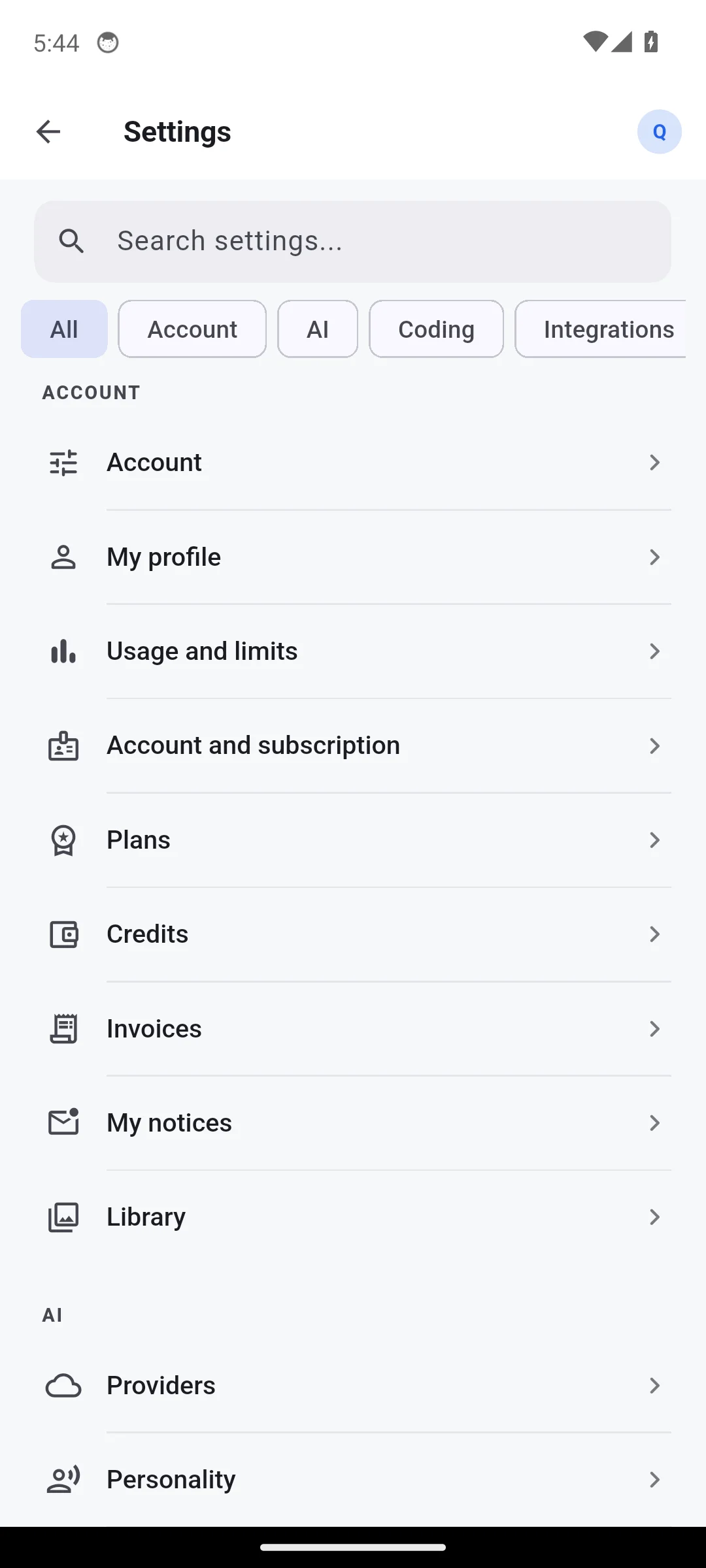
In the Android, iPhone, iPad, Windows, macOS and Linux apps, version 6.75.454 brought My profile, Account and Account and subscription together under Settings → Account. Profile, language, history sync, sign out and account deletion are on that screen. For theme and reading, open Settings → Appearance.
In Web 6.75.455, Account also brings profile, language and history together. Open Account from the account menu or Settings → Account. The main tabs are Account, Plan and Security. Language and theme are still available in the account menu too.
The Android captures in these guides show 6.75.452, and the Web captures and videos show 6.75.445, before the unified Account screen. Each caption identifies the captured version; for Web 6.75.455, follow the current paths described in the text.
Cortex supports Portuguese, English and Japanese. You can change language without creating another account.
- In the app, from 6.75.454: language is under Settings → Account → Language. Theme and reading are under Settings → Appearance.
- In Cortex Web: open the account menu and Language. Browser language follows the browser when supported.
Choose a language and return to the conversation to check labels. Your messages and uploaded files are not translated just because the interface changed. Ask explicitly if you want content translated.
For comfortable reading, adjust light or dark theme and your device's text size. A wider computer window shows more lists. In the installed phone app, use » to open the sidebar. On Cortex Web on a phone, use the menu button to open the sidebar.
If a button becomes unreadable, report the device, language and text size through Report a problem, attaching a screenshot without personal data.
Cortex Web language and theme
Switch Portuguese, English and Japanese and check light and dark.
Read the video
Open the account menu. Language and theme controls are here. Choose English to change interface labels. 日本語 changes the interface to Japanese. You can return to Portuguese without signing out. Dark lowers the brightness of the reading area. Light keeps the same navigation on a light background. Interface language does not automatically translate your files.