


Start here
Getting started
Download the app or open it in your browser, create your account, and start your first chat.
Choose where to use it
| Where | How to install |
|---|---|
| Android | From Google Play or with the APK on the site's downloads page |
| iPhone and iPad | From the App Store |
| Windows | Installer on the downloads page; the app updates itself |
| macOS | .dmg file on the downloads page |
| Linux | .deb or .tar.gz package on the downloads page |
| Browser | Cortex Web: just open it, nothing to install |
The links are always up to date in the site's Download section.
Create your account
- Open Cortex and tap Sign in.
- Sign in with email and password, with Google, or, on iPhone, with Apple.
- That's it: the Cortex Livre plan is already active, no card needed.
Your first chat
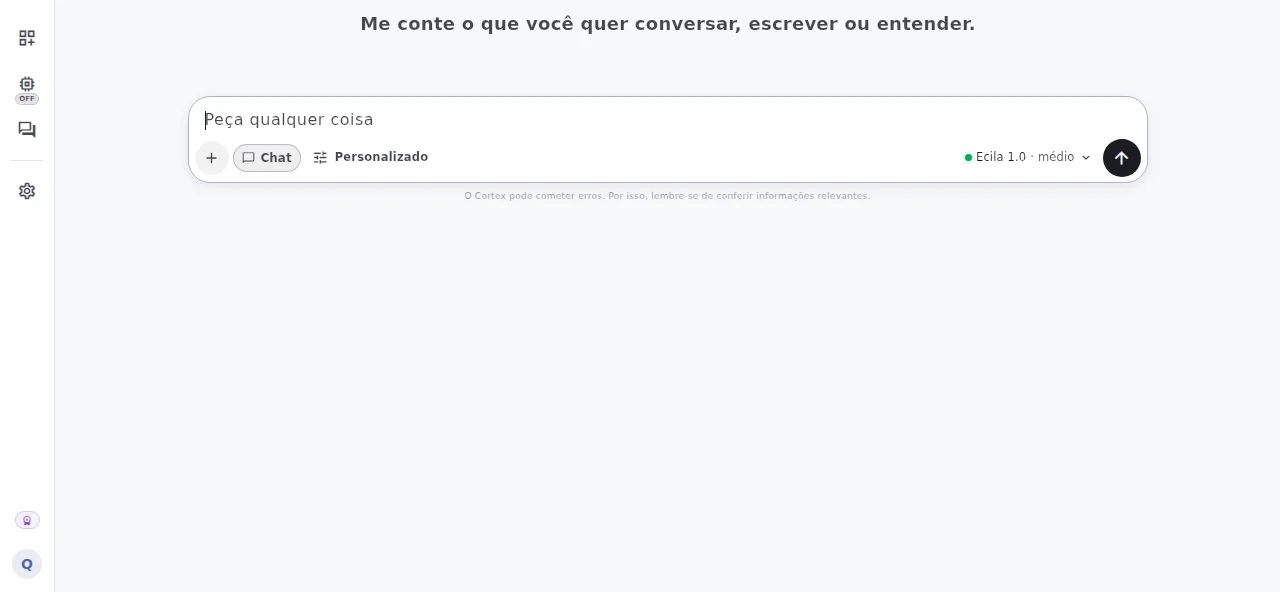
The first time you open Cortex, it asks how you want to use it today: I just want to talk (questions, writing, ideas) or I'm going to code (the AI works on the files of a project). You can switch at any time.
- Choose I just want to talk.
- Type what you need in the Ask anything field and send it.
- Follow the answer in the chat. To keep going, just write again in the same chat.
Finding your way around
- On computers and tablets, the shortcut rail is on the left: Home, Library, Tasks, Connections, Customize, Settings, and your plan. Your Chat and Code conversations are next to it. Open Messages for Team channels and customer conversations, brought together there since version 6.75.382.
- On phones, the chat takes up the whole screen. Tap the » button at the top (or swipe from the left edge) to open the chat list along with the shortcut column; tap outside to close it.
Language and theme
The app and site support Portuguese, English and Japanese. In current app versions, language is under Settings → Account → Language. In Web 6.75.455, open Settings → Account or use Language in the account menu. Dates, times and numbers follow the selected language.