


On your computer
Local AI on your computer
Run open models on your PC, offline — Cortex checks your computer, tells you what runs well, and downloads everything for you.
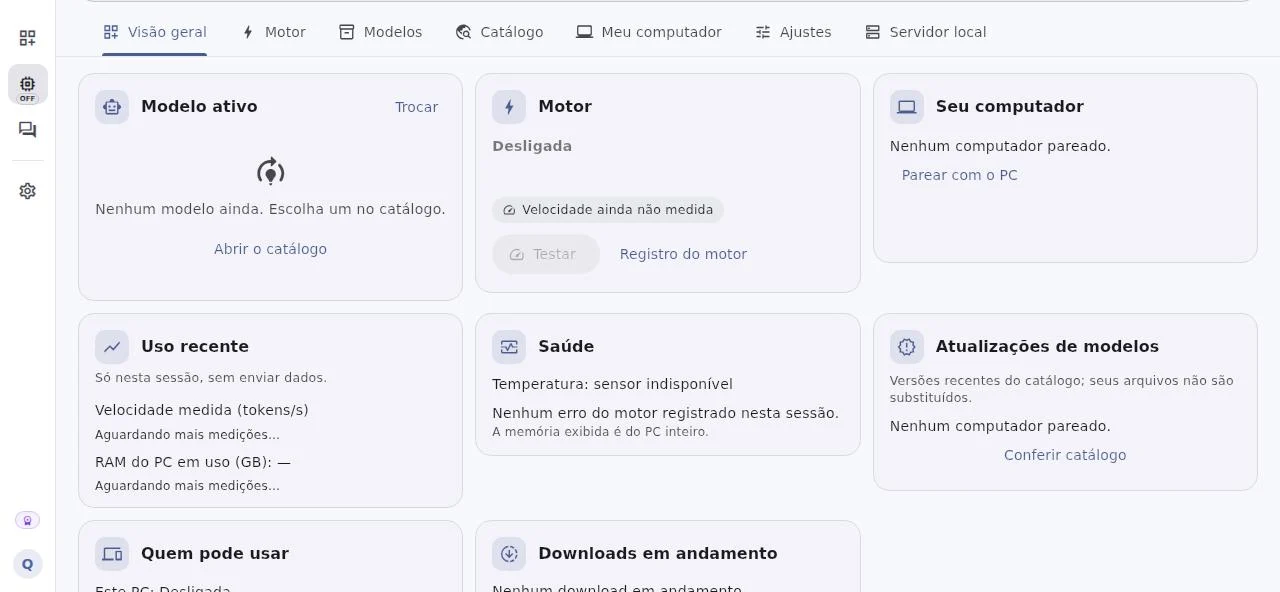
With Local AI, the model processes conversations on your computer and can respond offline after it has been downloaded. This local processing does not use your plan's allowance. Optional features, such as using it from your phone or switching to the cloud fallback, depend on the connection you choose. Turning Local AI off stops model responses and closes the chat connection from paired devices.
Open Local AI
On your computer, tap Local AI in the shortcut rail. The page has the tabs Overview, Engine, Models, Catalog, My computer, and Settings.
Choose and download a model
- Open the Catalog tab. Cortex has already analyzed your PC — memory, processor, and graphics card.
- At the top you see the model Recommended for your PC. Each model shows its family's official logo and a badge: green runs smoothly, yellow runs slowly, red doesn't fit. The reason appears on one line.
- Use the filters for use (Coding, Reasoning, Lightweight), Size and Family, and sort by recommended, smallest, most downloaded or newest. New models from the official families arrive on their own with the New badge. You can also search all of Hugging Face.
- Tap Download. The download can pause and resume where it left off, and it's verified at the end.
Turn it on and use it in chat
- In Overview, turn on Turn on local AI and choose the active model.
- In the chat, open the model picker and choose Cortex Local.
- Chat as usual — everything is processed on your computer.
ON and OFF in the rail
The Local AI icon in the rail shows its status: green ON (on), gray OFF (off), yellow while loading, and red on error. Hover over it to see the model and the speed.
When you turn Local AI off, the local model leaves the picker. Chats move to the available backup model, with a notice identifying which model will be used. If no backup is available, the app asks you to choose another model. If Local AI stops responding, the chat tells you right away and continues in the cloud when Use the cloud when the PC cannot handle it is on in Local AI Settings; without it, the app asks you to turn it back on or switch models.
Remove models
In the Models tab, tap Remove from PC to free up space. You need to switch away from the model in use first.
Use on your phone
Want to chat with your PC's model from your phone? See My PC's AI.
Choose a local AI setup
On your computer, open Local AI. Overview brings together your chosen model, engine, computer memory, downloads and connections. Unavailable temperature or speed readings are shown as unmeasured.
Under Recommended for you, choose coding, chatting, an agent or document work. Review the model, quantization, context, engine and estimated memory. Use suggestion reuses a downloaded model or starts a download after license acceptance. If your setup changes during the download, it is not replaced without a new request.
In Engine, compare context sizes. More context can consider more text, but uses more memory. Options respect the maximum reported by the model. Green means lightweight; yellow means slower; red means excessive load and prevents applying the option. Memory estimates and measured speed are different information. Use Test to measure this model on your computer.
On your phone, open My PC's AI and scan the QR shown on your computer. Model and context settings stay on the PC. The document suggestion prioritizes text; the local engine does not read images yet.
Turn local AI on from a paired device
Under Use on phone, Turn on and off from paired devices is off by default. If you enable it, your already paired devices can check your computer and turn local AI on or off. The computer must be on with Cortex open. While local AI is off, this control does not handle chats; turn local AI on and use a connection supported by your plan to chat.