


Create
Library
Everything born in your chats — images, videos, documents, code, 3D, and audio — in one place, with search and filters.
Step previews
Available in Cortex 6.75.369 and later.
Steps with images show thumbnails beside their names. On desktop, hover to preview; tap or click to open the gallery with arrows, zoom, copy, download and access to the source. PDFs may show their first page; videos and 3D models use a cover when available.
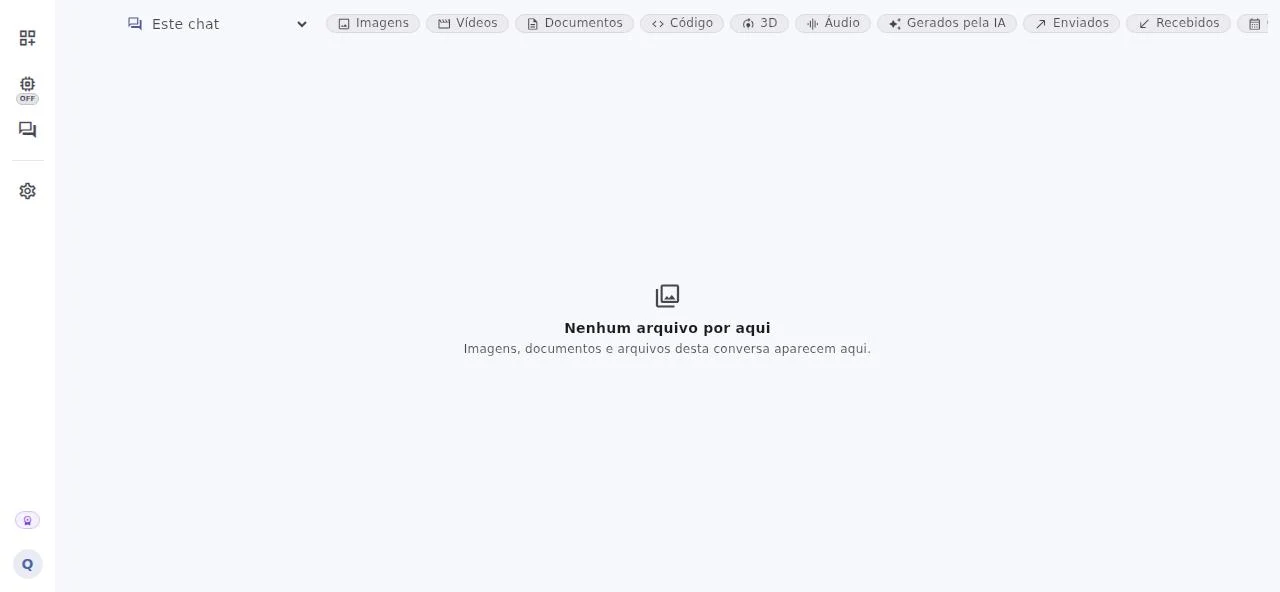
The Account library in the rail gathers files from all conversations and offers filters for chat, type and date. The Chat library inside a conversation shows only that chat's files.
Sensitive content stays protected and temporary captures may expire. Shared chats show only non-sensitive previews approved for sharing to authorized participants.
Open the Library
- All conversations: tap Library in the shortcut rail (on phones, in the menu opened by »).
- Just one chat: inside the chat, open Files from this conversation from the icon at the top.
Find a file
- Use the search at the top: it looks up the file name or the chat name.
- Filter by type: Images, Videos, Documents, Code, 3D, and Audio.
- Filter by source (Made by AI, Sent, Received) and by date.
- Switch between the thumbnail grid and the list in the top corner.
View, save, and share
- Tap an item to open its full-screen view. Save, Share, In chat and Delete appear according to the file and your permissions: sensitive media does not offer Save, and read-only items do not offer Delete. Local documents may open a dedicated viewer; remote ones may open in the browser.
- Press and hold (or right-click) to select several at once.
Where your files live
What's born in your chats is stored first on your device and shows up on your other devices. The cloud is an extra, for plans that include storage: the size for each plan is in Plans. The On this device tag shows what's already stored locally.